


How to Sign In to SMC Entra Single Sign-On (New Login)
SMC is changing how students sign in. Use this guide to sign in and set up your verification (multi-factor authentication).
Before you start
Have:
- Your SMC email address (example: username@student.smc.edu)
- Your SMC password
- A phone (recommended) to receive a verification code
Microsoft Entra provides a more robust, cloud-native platform that enhances protection against evolving cyber threats while offering students, faculty, and staff a seamless login experience across college systems.
Student SSO Table of Contents
- First time Signon
- Microsoft MFA Methods
- Microsoft Authenticator
- Phone - SMS or Voice Call
- Terms of Use Acceptance
- On Campus Login
- Don't receive One Time Passcode (OTP) - Device changed, No access to email or phone
- Go to the SMC sign-in page for the service you are using.
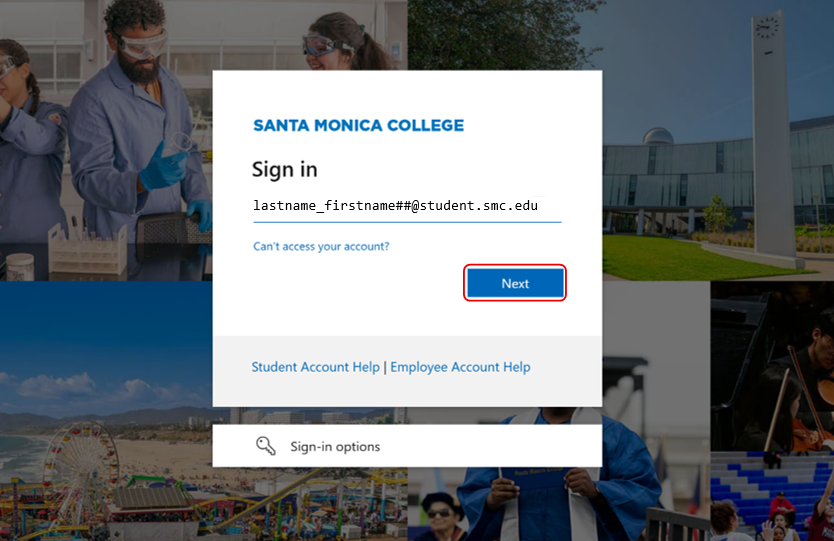
- When asked to sign in, enter your full SMC email address (example: username@student.smc.edu).
- Enter your SMC password.
- Tip: Make sure the sign-in page shows SMC/Microsoft branding before entering your
password.
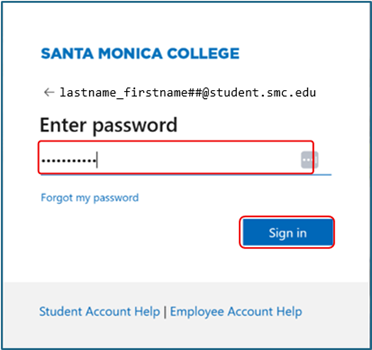
- Tip: Make sure the sign-in page shows SMC/Microsoft branding before entering your
password.
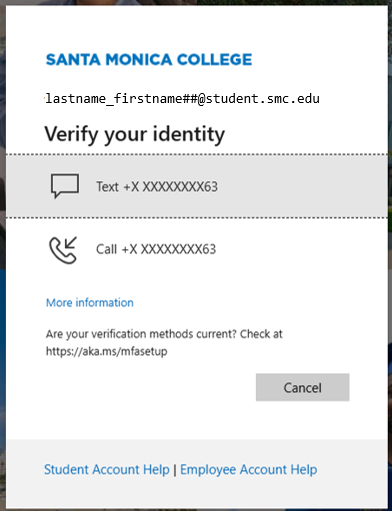
- If you are asked for a verification code, follow the prompts to receive it by text message or phone call.
You may be asked to set up a verification method. Choose one: 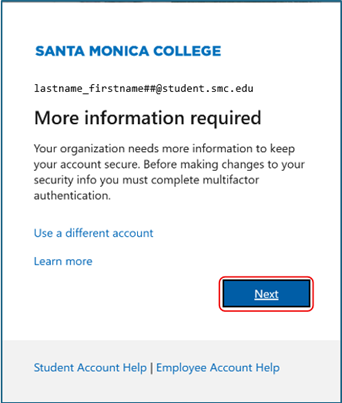
Option A (recommended): Microsoft Authenticator app
- Install Microsoft Authenticator on your phone (App Store / Google Play).
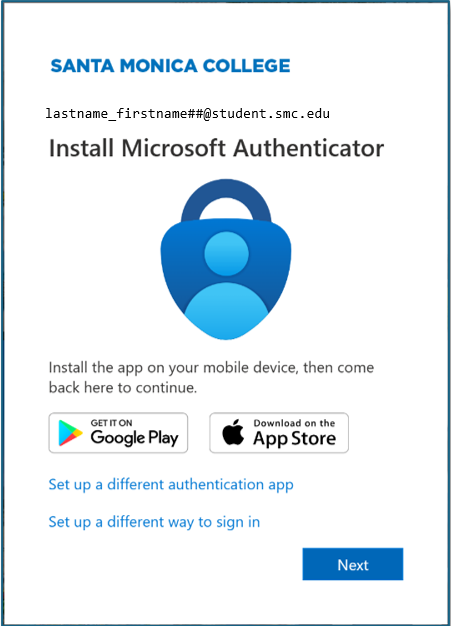
- Choose Microsoft Authenticator when asked for a method.
- Open the Authenticator app on your phone.
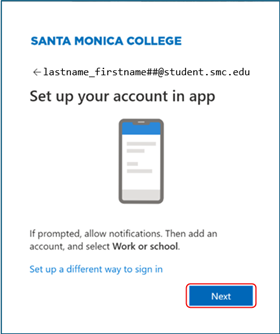
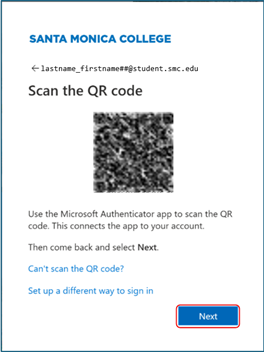
- Use the QR code option in the app and scan the QR code shown on your computer.
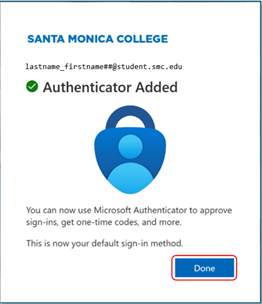
- Follow the on-screen instructions to finish setup.
Option B: Phone (text message or call)
- On the setup screen, select Set up a different way to sign in (wording may vary).
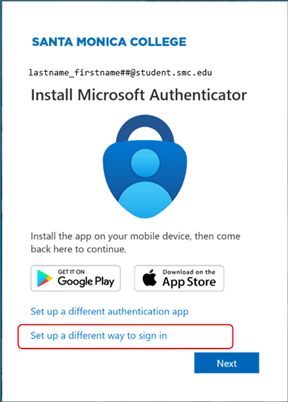
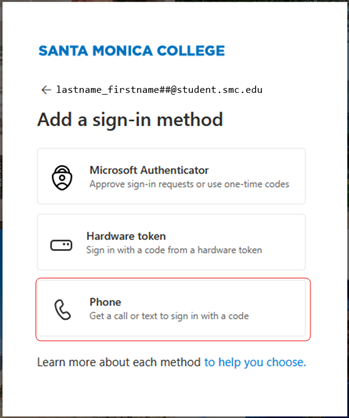
- Choose Phone.
- Choose:
- Text a code (SMS) or
- Call (voice call)
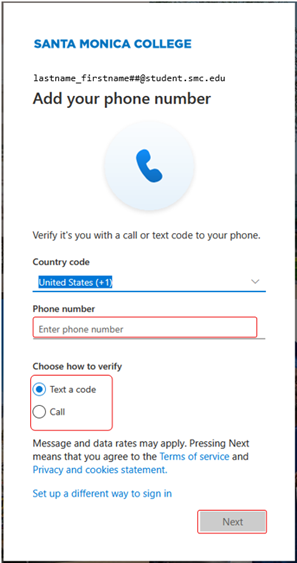
- Enter your phone number if prompted, then follow the on-screen instructions.
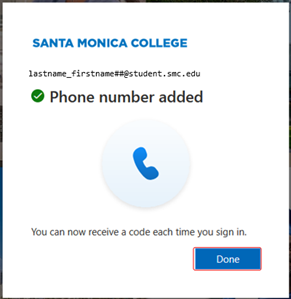
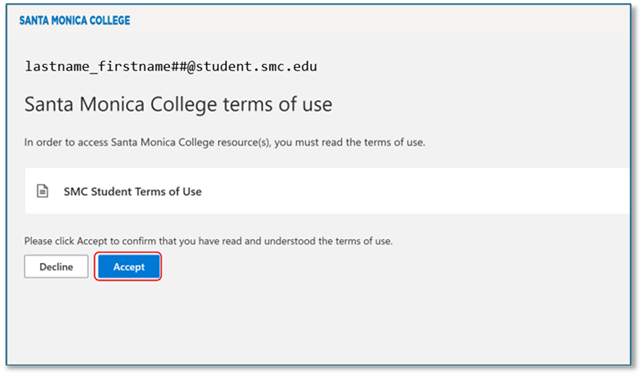
After you sign in, you may see the SMC Student Terms of Use.
- Read the terms.
- Select Accept to continue.
If you don’t receive a verification code, changed your phone, or don’t have a phone:
- Email: StudentITHelp@smc.edu
- Phone: 310-434-3111